
OAuth Credentials
Many APIs require an OAuth2 access token instead of a static API key. Atlas Actions support the Client Credentials grant — you save a connection once, and Atlas will fetch and refresh tokens automatically every time the action fires.
You can save multiple OAuth connections and pick which one to use per action.
When to use OAuth
- Your API uses OAuth2 Client Credentials (machine-to-machine).
- You don’t want a long-lived API key in headers.
- You want to share one connection across many actions.
For static API keys or bearer tokens, use a custom Header on the action instead.
Add a new OAuth connection
You can add OAuth connections from inside any action form — Create from scratch, Edit, or a template form that supports auth.
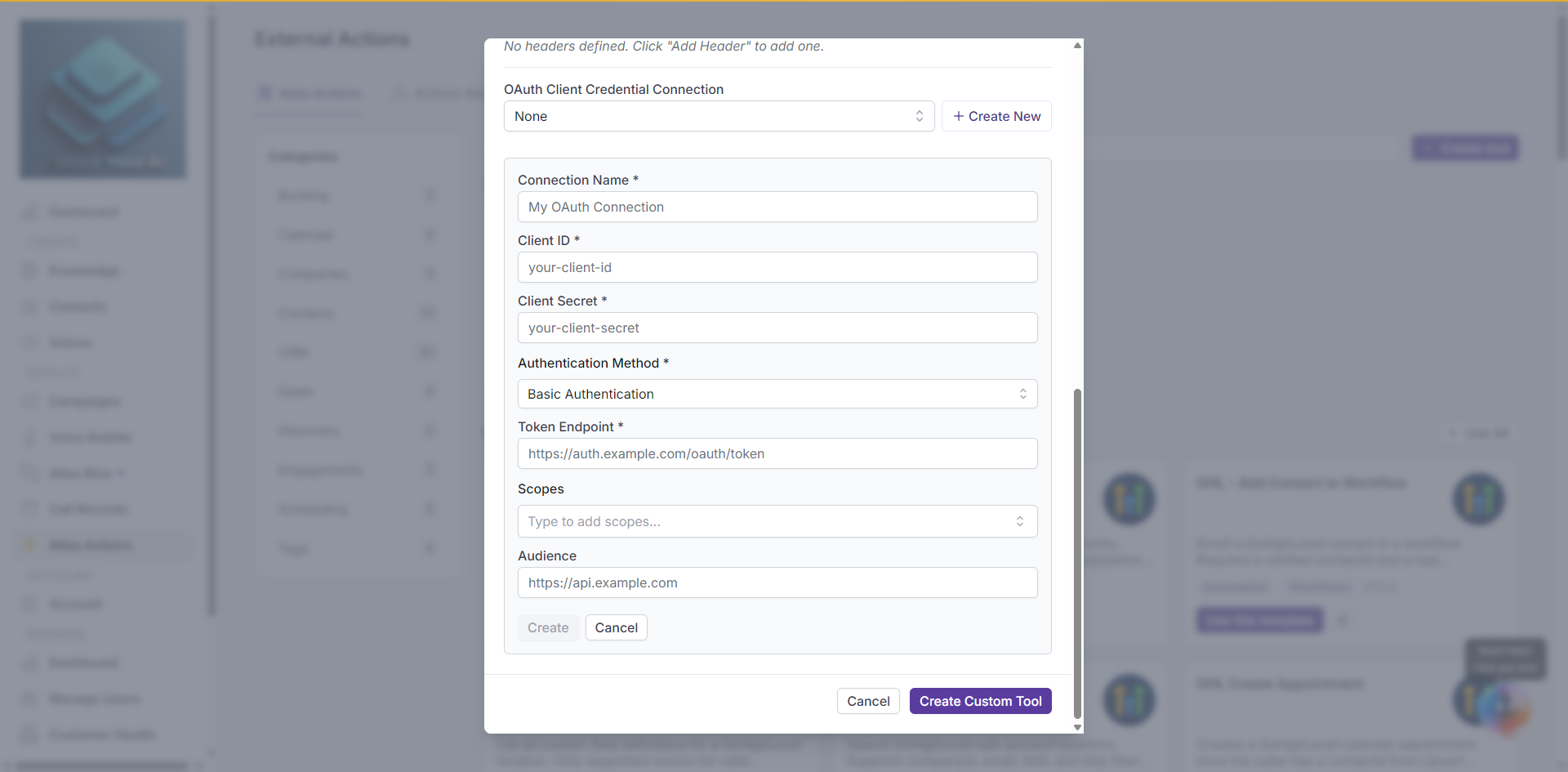
- In the Authentication section, click Add new OAuth method.
- Fill in the form:
- Connection Name — A label for this connection (e.g. Production Salesforce). Shown in the dropdown later.
- Client ID — From your OAuth app.
- Client Secret — From your OAuth app. Stored encrypted.
- Token Endpoint — Full URL to the token issuer (e.g.
https://login.example.com/oauth/token). Must be a valid URL. - Scopes — Optional. Pick or type the scopes your action needs.
- Audience — Optional. Required by some providers (Auth0, etc.).
- Auth Method — How credentials are sent to the token endpoint.
basic(HTTP Basic auth header) is the default.
- Click Save. Atlas tests the credentials against the token endpoint before saving — if the test fails, the connection isn’t saved and you’ll see the error.
Once saved, the new connection is auto-selected on the action you’re editing.
Use an existing connection
In any action form, open the Authentication method dropdown and pick a saved connection. Atlas will:
- Request an access token from the token endpoint before each action call.
- Cache the token until it expires.
- Attach
Authorization: Bearer <token>to the action’s HTTP request.
You don’t need to add an Authorization header manually — Atlas handles it.
Manage connections
Saved connections live on your account profile. To rename or delete one, go to Account > Connections (or whichever page your white-label uses). Deleting a connection breaks any action still pointing to it — switch those actions to a different method first.
Troubleshooting
- Test failed when saving — Check Client ID, Client Secret, and Token Endpoint. Some providers also require
audienceor specificscopes— check the provider docs. - Action returns 401 — Token expired or scopes don’t include the resource. Try regenerating the credentials in your OAuth provider.
- Action returns 403 — Token is valid but lacks permission for the endpoint. Add scopes.