
Tool Templates
Pre-built Atlas Actions for common integrations
The Atlas Actions tab under Global Actions is a marketplace of pre-built action templates. Each template wraps a known service (CRM, calendar, payment processor, etc.) so you only have to provide your credentials — URL, headers, parameters, and descriptions are filled in for you.
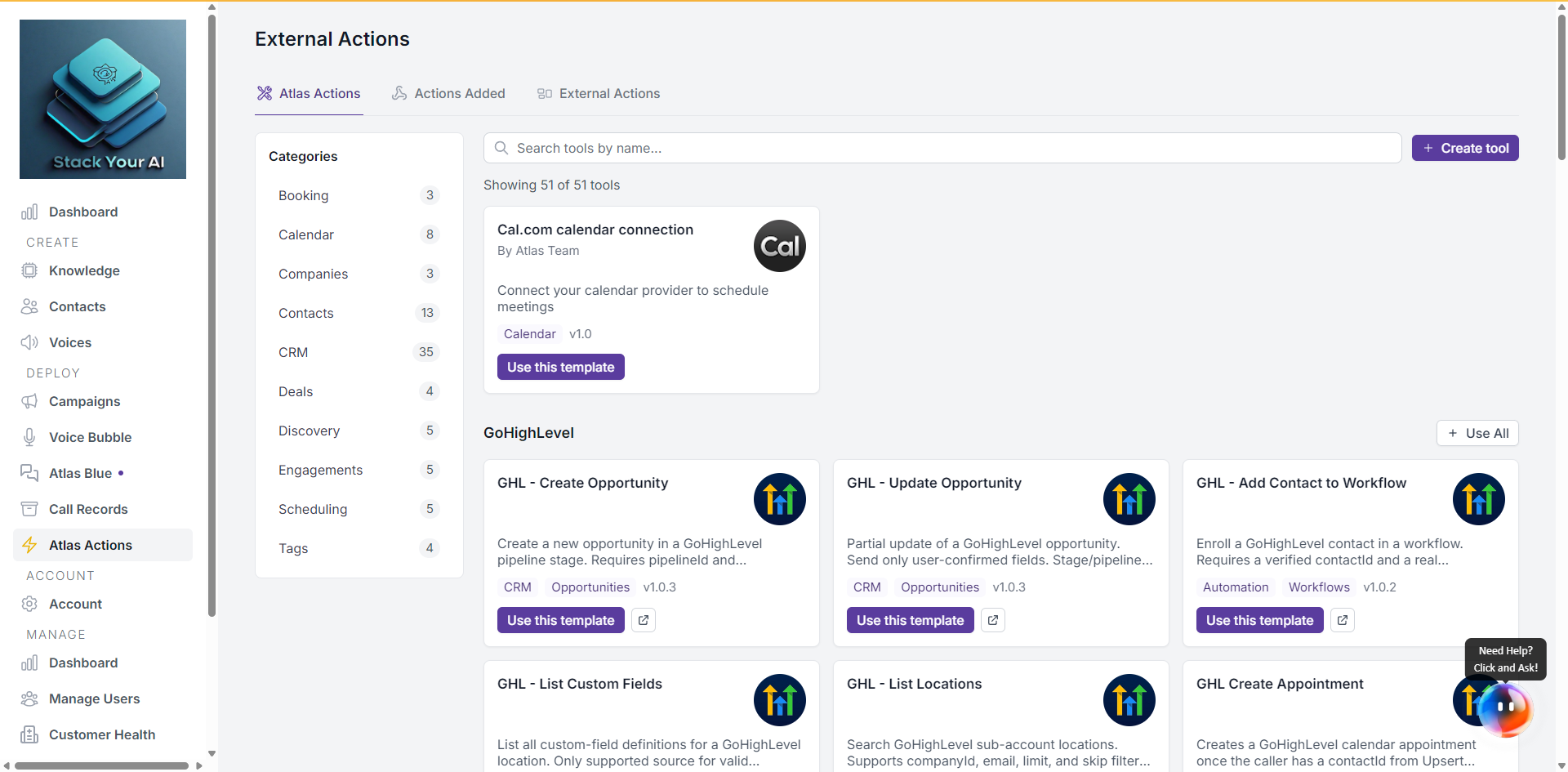
Browse templates
- Search bar — Search by name or description. Updates as you type.
- Categories sidebar — Filter by category (CRM, Calendar, Communication, etc.). Click a category to toggle, click Clear to reset.
- Results count — Shows filtered vs. total templates.
Templates are grouped by service. A group with multiple templates (for example, the three GoHighLevel actions) shows a Use All button — see Batch Create.
Create an action from a template
- Find a template you want and click Use this template.
- Fill in the required fields. Each field has:
- A label and optional hint (hover the
?icon). - A description explaining what the value is.
- A field type — text, password, number, select, or textarea.
- Validation — required fields are marked with
*and may have format checks.
- A label and optional hint (hover the
- Click Add Tool.
The action appears on the Actions Added tab, ready to attach to a campaign.
Template fields
Common placeholder fields you may see:
- API Key / Token — Your service-specific credential. Stored encrypted.
- Location ID / Account ID — Tenant identifier inside the third-party service.
- Calendar ID / Resource ID — Specific resource inside the account.
- Webhook URL — Where Atlas should POST results. Some templates supply this; others need yours.
If a field has a hint icon (?), hover it for guidance on where to find that value in the third-party service.
Documentation links
If a template has a documentation URL, the card shows a small external-link icon next to Use this template — click it to open the service-specific setup guide in a new tab.
Built-in templates
These first-party templates appear in addition to community templates:
- Cal.com calendar connection — connect a Cal.com calendar via API key.
- GoHighLevel — three actions for contacts, free slots, and booking.
After creating
- View and edit on the Actions Added tab.
- Attach to a campaign under Campaign > Integrations > Tools Integration > Manage Tools.