
Zapier Integration
Create automations with Zapier for Atlas
Overview
This guide explains how to create automations with Zapier for Atlas.
For any trigger or action you’ll have to log in to your Atlas account in Zapier and authorize the app.
Triggers
1. Call Completed
Triggers when a call is completed in Atlas.
Output Data:
- Campaign Id
- Agent Id
- Call Id
- Customer Number
- Customer Name
- Campaign Name
- Agent Name
- Campaign Type (outbound | inbound | voice-bubble)
- Call Summary
- Ended At
- Started At
- Duration Ms
- Duration Seconds
- Duration Minutes
- Call Transcript
- Audio Url
Use Cases:
- Record call details in Google Sheets
- Send completion notifications via email or Slack
- Store call data in a database
- Trigger follow-up workflows based on call outcomes
2. Call Started
Triggers when a new call begins in Atlas.
Output Data:
- Campaign Id
- Agent Id
- Call Id
- Customer Number
- Customer Name
- Campaign Name
- Agent Name
Use Cases:
- Log the start of calls
- Send real-time notifications
- Start parallel processes
Actions
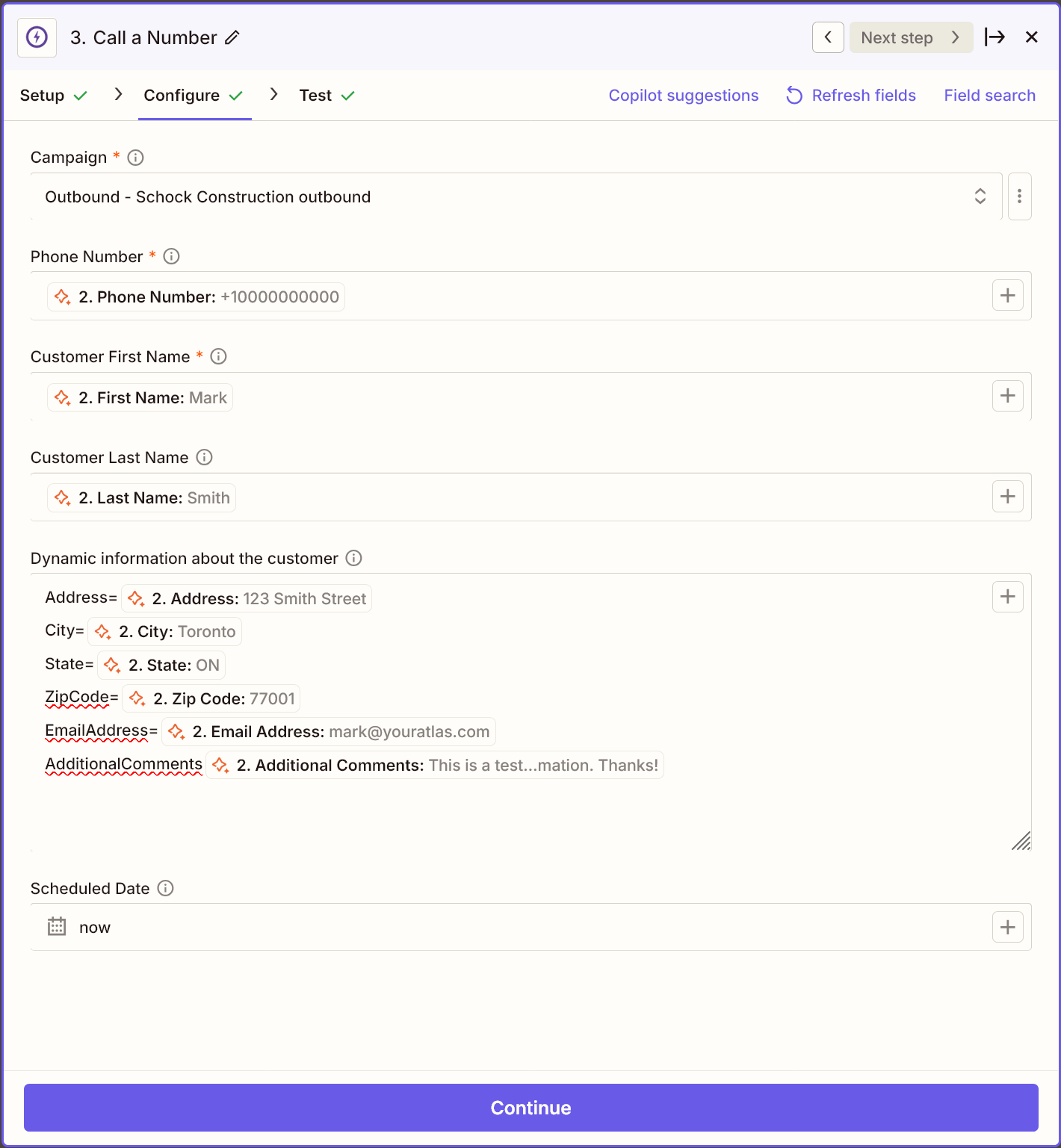
1. Action: Call A Number
Initiates an outbound call from an Atlas campaign.
Parameters:
- Campaign (select from available Atlas campaigns)
- Phone Number (target number to call)
- Customer First Name
- Customer Last Name (optional)
- Dynamic information about the customer (optional). To use custom variables you can add key-value pairs with information, split by semicolon or new line. Example:
age=25;status=contacted - Scheduled Date (optional - if not provided, call starts immediately)
Use Cases:
- Schedule follow-up calls based on form submissions
- Initiate calls when specific events occur
- Set up automated call sequences
Creating Basic Automations
Example 1: Log Completed Calls to Google Sheets
- Create a new Zap in Zapier
- Select Atlas as the trigger app and “Call Completed” as the trigger event
- Connect your Atlas account when prompted
- Select Google Sheets as the action app and “Create Spreadsheet Row” as the action
- Map the call data fields to your spreadsheet columns
- Test and enable your Zap
Example 2: Trigger Follow-up Call After Form Submission
- Create a new Zap with a form submission trigger (e.g., Google Forms, Typeform)
- Select Atlas as the action app and “Call A Number” as the action
- Connect your Atlas account when prompted
- Map form fields to call parameters (name, phone number)
- Configure scheduling options if needed
- Test and enable your Zap
Example 3: Send Slack Notification When Call Starts
- Create a new Zap with Atlas as the trigger app and “Call Started” as the trigger event
- Connect your Atlas account when prompted
- Select Slack as the action app and “Send Channel Message” as the action
- Create a message template using call data (Campaign Name, Customer Name)
- Select target Slack channel
- Test and enable your Zap
For more advanced workflows, consider using Zapier’s multi-step Zaps, filters, or formatters to create complex automations tailored to your specific needs.